
Explorer 130# Silk Cover
Blue Foil Blue Foil

Feather

Explorer 130# Silk Cover

Blue Foil

Foil Only

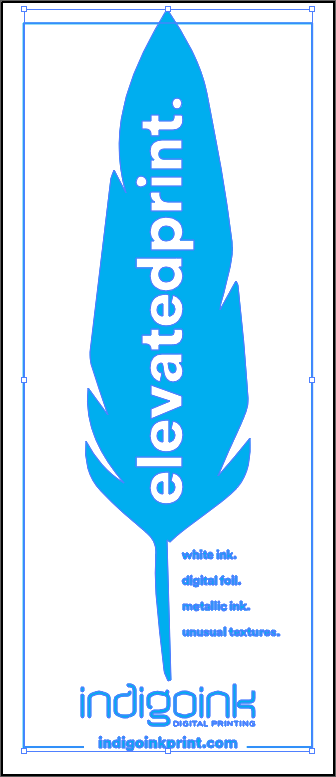
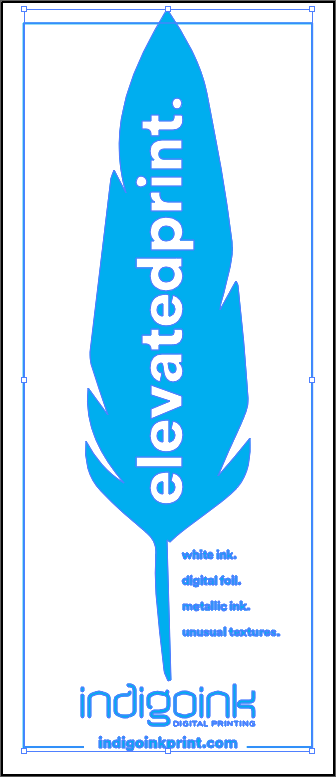
The Feather bookmark demonstrates digital foil stamping capabilities. HP Indigo's digital foil process creates stunning metallic effects with precision detail and clean, crisp edges.

Credit: Black Birch Design Studio

About Digital Foil

Digital foil stamping creates stunning metallic effects with precision detail. Unlike traditional foil stamping which requires custom dies, HP Indigo's digital foil process enables foil effects on variable data and short runs with no setup costs.

This sample showcases blue foil applied directly to a silk-coated substrate, demonstrating the clean, crisp edges achievable with digital foiling technology. The foil layer provides a brilliant metallic finish that catches light beautifully.

Best Practices

File Setup

Adobe Illustrator

HP Foil Spot Color Setup

Creating HP Foil spot color in Adobe Illustrator

Step 1 of 8
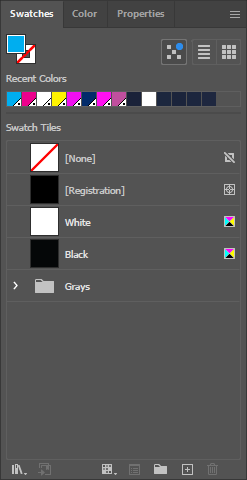
Illustrator Swatches Panel

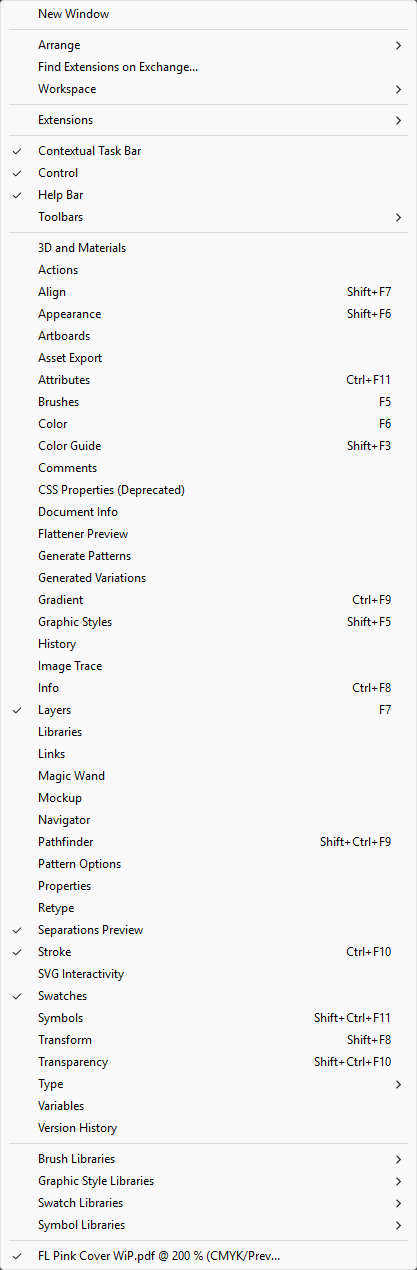
Open the Swatches Panel

In Adobe Illustrator, go to Window > Swatches to open the Swatches panel. This is where you'll create the HP Foil spot color.

💡

You can also use the keyboard shortcut F5 to toggle the Swatches panel.

Selection of Foil Artwork

Select Foil Artwork

Select all the artwork elements that should print with foil. These are typically solid shapes and bold typography that will receive the metallic finish.

💡

Use Select > Same > Fill Color to quickly select all elements with the same fill.

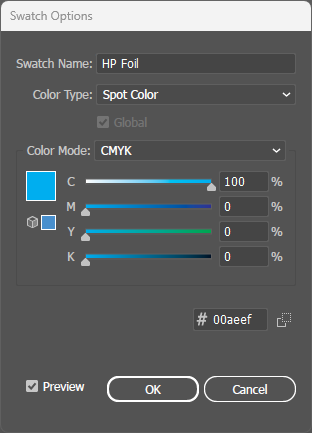
New Swatch Dialog

Create New Spot Color Swatch

Click the Swatches panel menu and select New Swatch. In the dialog:

  • Swatch Name: HP Foil
  • Color Type: Spot Color
  • Color Mode: CMYK
  • Set Magenta to 100% (for visibility)
⚠️

Critical: The name must be exactly HP Foil with correct capitalization and spacing for the press to recognize it.

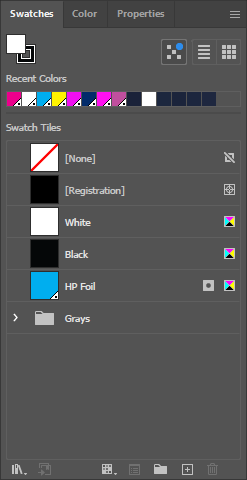
Swatches Panel with HP Foil

Verify Swatch Created

Your Swatches panel should now show the HP Foil spot color swatch. It will appear with a white triangle in the corner indicating it's a spot color.

💡

The spot color indicator (white triangle) confirms the color will output as a separate ink channel.

Applying Spot Color

Apply Spot Color to Artwork

With your foil artwork selected, click the HP Foil swatch to apply it as the fill color. The artwork will appear magenta (the preview color) but will print as metallic foil.

💡

The magenta preview is just for visibility - the actual output will be metallic foil on press.

Windows Menu - Attributes

Open the Attributes Panel

With your HP Foil artwork still selected, go to Window > Attributes to open the Attributes panel. This panel controls overprint settings.

⚠️

Important: The next step is critical - foil must be set to overprint for proper layering on press.

Attributes Panel - Overprint Fill

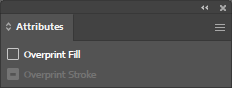
Enable Overprint Fill

In the Attributes panel, check the Overprint Fill checkbox. This ensures the foil prints on top of other layers rather than knocking them out.

⚠️

Critical: Foil must be set to overprint. Without this setting, foil areas will knock out underlying artwork, causing registration issues and gaps.

Separations Preview

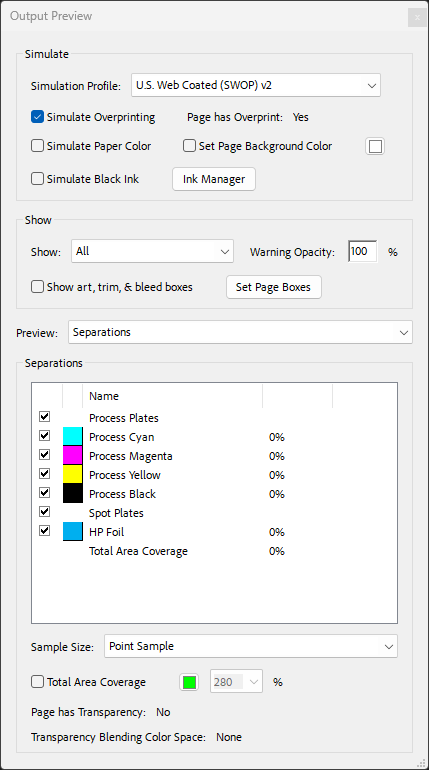
Verify in Separations Preview

Go to Window > Separations Preview and toggle the visibility of each separation. You should see:

  • CMYK channels: Your base artwork (if any)
  • HP Foil: Your foil artwork (with overprint)
💡

If HP Foil doesn't appear as a separate channel, the spot color wasn't created correctly. Go back to Step 3.